PC Gaming: Proven Strategies to Lower Laptop Temperatures
Credit : whatcanu.com
Gaming laptops function like high-performance engines packed into tight chassis. When you push your CPU and GPU to their limits, they generate massive heat. Think of your cooling system as a car radiator. If it fails to dissipate heat, the engine loses power to prevent permanent component failure. This is called thermal throttling, where the system drops clock speeds to stay alive. You see this as sudden frame drops or stuttering. Here is how to regain control and keep your hardware in the performance zone.
The Physics of Airflow: Why Surface Matters
Credit : whatcanu.com
Airflow is the foundation of thermal management. Your laptop intakes cool air through bottom vents and exhausts hot air through the rear or sides. If you block these vents, you essentially choke the machine. Data shows that elevating a laptop by just 25mm increases intake efficiency by nearly 15% compared to placing it flat on a desk.
Avoid soft surfaces: Never play on beds or carpets. These materials act as insulators and physically plug your intake vents.
The desk gap rule: Use a dedicated laptop stand. If you do not have one, prop up the rear edge with a firm object. This creates a vacuum effect that pulls more air into the intake zone.
Clear the exhaust path: Ensure at least 15cm of clearance behind your laptop. Recirculating hot exhaust air back into the intake is a common cause of internal temperature spikes.
Active Cooling Accessories: Do They Actually Work?
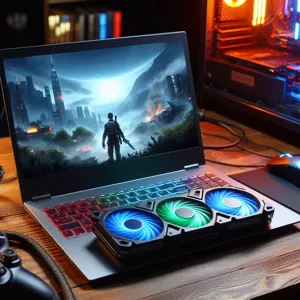
An active cooling pad acts like a forced-air turbocharger for your laptop. While it cannot replace broken internal fans, it provides a consistent stream of ambient air. Laboratory tests indicate that a high-quality cooling pad can lower average GPU temperatures by 3°C to 7°C during heavy loads.
Match the intake: Check where your laptop vents are located. A cooling pad is useless if the fans are pushing air against a solid plastic bottom panel.
Variable fan speeds: Choose models with speed control. Run them at maximum during AAA titles and dial them back for lower-load tasks to reduce acoustic noise.
Precision Software Optimization
Credit : whatcanu.com
You can significantly reduce heat by managing how your hardware processes game data. Think of it like fuel efficiency in a car; you do not need to redline the engine to reach your destination.
Cap your frame rate: If your display is 60Hz, cap your game at 60 FPS. Rendering 144 frames on a 60Hz screen wastes GPU power and generates heat for no visual benefit.
Optimize visual settings: High-demand settings like ray tracing or ultra-shadows often provide diminishing returns. Lowering these by one notch can drop GPU usage by 10-15%.
Monitor in real-time: Use tools like MSI Afterburner to display temperatures while playing. If you consistently hit 90°C, your current settings are too aggressive for your thermal headroom.
The Routine: Maintenance That Saves Hardware
Dust is the primary enemy of cooling. Over time, it creates a layer of insulation over heatsinks and blocks fine fan blades. Consistent maintenance prevents the “thermal wall” effect where the cooling system can no longer keep up.
Quarterly compressed air cleaning: Use short, controlled bursts of compressed air on your vents every three months. Do not blast air directly at fans for too long, as it can over-spin bearings.
Thermal paste replacement: If your machine is over two years old, factory thermal paste often loses its effectiveness. Replacing this conductive material can drop system temperatures by 5°C to 10°C instantly.
Common Mistakes That Lead to Throttling
Credit : whatcanu.com
Even with good equipment, small errors often sabotage your cooling efforts. Avoid these mistakes to protect your investment.
Relying on Auto fan settings: Most manufacturers prioritize quiet operation over cooling. Use your laptop’s control software to create a manual ‘Turbo’ profile that triggers fans earlier.
Ignoring ambient temperature: Your laptop cannot cool itself with air that is already hot. If your room is 30°C, the cooling system will struggle. Use a room fan to push cool air toward your desk.
Background software bloat: Check your Task Manager before starting a session. Browser tabs and background updaters use CPU cycles that translate directly into heat.
Expert Insight: The Fan Curve Strategy
Most modern gaming laptops allow for custom ‘fan curves’. This is a graph where you define the relationship between internal temperature and fan speed. Do not wait for the system to throttle before reaching maximum speed. A professional strategy is to set a custom curve that ramps fans to 100% speed as soon as the CPU hits 75°C. This proactive approach keeps temperatures stable rather than chasing them after they have already peaked. Consistent thermal management extends the lifespan of your motherboard and ensures smooth performance during long gaming sessions.