How to maintain your PC for optimal gaming performance?
Credit : whatcanu.com
A gaming PC is a high-performance machine that degrades over time without consistent upkeep. If you treat it like a simple office computer, you will lose frame rates, experience stuttering, and shorten the lifespan of your expensive components. This guide provides a professional, actionable framework to keep your rig running at its peak.
The Thermal Management Strategy
Credit : whatcanu.com
Heat is the primary cause of hardware degradation. When components like your CPU or GPU hit 85°C, they trigger thermal throttling. This is a safety feature where the hardware slows its own clock speed to prevent physical melting. Think of it like a marathon runner trying to breathe through a straw while wearing a heavy winter coat; the oxygen simply cannot get in, and performance plummets.
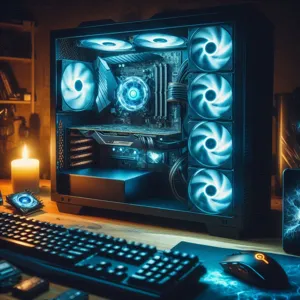
Mastering Airflow: Your case should function as a wind tunnel. Intake fans at the front pull cold air in, and exhaust fans at the back push heat out. If you have neutral or negative pressure, you are likely trapping hot pockets of air around your GPU.
Dust Management: Dust acts as a thermal blanket, insulating your heatsinks. Use compressed air every three months to clear the fins. Hold the fan blades still while blowing air to prevent them from spinning too fast, which can generate an electrical charge that damages your motherboard.
Thermal Paste Replacement: The thermal paste between your CPU and cooler dries out over time, usually after three years. Replacing it with high-quality compound can drop temperatures by 5-10°C. Consider this an essential surgery rather than an optional upgrade.
Mastering Software and Driver Hygiene
Drivers are the interpreters between your game code and your hardware. When these interpreters are outdated or corrupted, the system loses efficiency. A clean driver environment is the foundation of high frame-rate stability.
DDU (Display Driver Uninstaller): Standard uninstalls often leave ‘ghost’ files behind. Use DDU in Safe Mode to wipe everything related to your GPU drivers. This ensures that new installations start on a blank slate, preventing conflicts that cause random game crashes.
Startup Management: Press Ctrl + Shift + Esc to open Task Manager. Look at the ‘Startup’ tab and disable anything not critical to Windows operation. Every app sitting in your system tray is a thief stealing CPU cycles and RAM that your game needs for rendering.
Game Mode and Power Profiles: Always toggle Windows Game Mode on. It instructs the OS to pause non-essential background tasks, such as Windows Updates or indexing, while you are in a full-screen application.
Optimizing SSD Health
Credit : whatcanu.com
Solid State Drives (SSDs) are the backbone of modern load times. Unlike old spinning hard drives, you must never defragment an SSD. Defragging involves reordering files to save space on a physical disk, but on an SSD, it simply wastes write cycles and degrades the drive faster. Think of your SSD as an indexed digital filing cabinet; the computer knows exactly where every file is instantly.
The 15% Free Space Rule: Your SSD needs room to move data around (a process called wear leveling). If the drive is 99% full, the controller has no workspace to move data, and you will notice massive lag during save operations or area transitions in games.
TRIM Utility: Ensure the Windows TRIM command is active. This utility tells your SSD which blocks of data are no longer in use, allowing it to wipe them effectively. You can check this by searching ‘Optimize Drives’ in your Windows menu.
Pro-Level Maintenance Checklist
Performance optimization is a habit, not a one-time fix. Use this checklist once a month to verify the health of your system.
Monitor with MSI Afterburner: Use this software to overlay your CPU and GPU temperatures while gaming. If you see spikes above 90°C, you have a hardware issue that needs immediate attention.
Malware and Miner Scanning: Use Malwarebytes for periodic deep scans. Crypto-mining malware is common; it silently hijacks your GPU power, making games perform as if your hardware is five years older than it really is.
Verify Game Integrity: If a specific title keeps crashing, do not reinstall the whole game immediately. Use the ‘Verify Integrity of Game Files’ feature in Steam, Epic, or Battle.net. It compares your files to the source and replaces only the corrupted pieces, saving hours of download time.
Common Pitfalls and Field Experience
Credit : whatcanu.com
Avoid any software advertised as a ‘PC Speed Optimizer’ or ‘Registry Cleaner’ found in web ads. These programs are almost always bloatware that create errors rather than fixing them. They manipulate delicate Windows registry keys, which can lead to system instability that is nearly impossible to reverse without a full Windows reinstall.
If you perform all these steps and still experience poor performance, check your RAM usage. If your system is consistently hitting 90% usage while idle or playing, you have physically run out of capacity. In this case, software tweaks will not help; a memory upgrade is the only logical path forward. Regular maintenance is not just about fixing what is broken; it is about ensuring your hardware is never fighting against itself.