
How to back up your gaming PC: The definitive guide
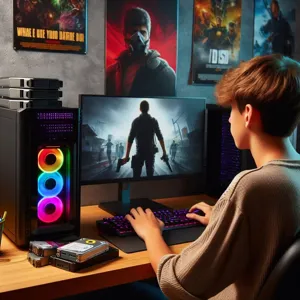
Data loss in gaming is a silent progress killer. A dying SSD or a corrupted Windows update can wipe hundreds of hours of gameplay in seconds. While cloud saves are helpful, they are not a complete safety net. Think of a proper backup strategy like a spare tire in your car: you hope you never need it, but you will be stranded without it.
Where game saves hide: Locating your data
Game launchers do not store files in one place. Relying on Steam Cloud is risky because it often ignores custom configuration files, mod lists, and internal game settings. You must manually locate these directories to secure your data properly.
Steam save directories

Steam games vary wildly in storage locations. Most store data in the ‘Steam/userdata’ folder, identified by a unique numerical ID. Others hide data in your Windows ‘Documents’ folder or the ‘AppData’ local folder. You can find these by right-clicking a game in your library, selecting ‘Manage’, then ‘Browse local files’. If you don’t see a ‘saves’ folder there, check the ‘Documents/My Games’ directory.
EA, Ubisoft, and Epic Games
EA and Ubisoft launchers frequently default to the ‘Documents’ folder for save states. Epic Games titles often sync to the cloud, but they rarely include high-res screenshots or custom user-generated content. For these launchers, always check ‘C:\Users\YourName\AppData\Local’ or ‘Roaming’. These folders act like digital junk drawers; if you clear them out without backing up, your settings and progress disappear.
The gamer’s 3-2-1 backup strategy

The 3-2-1 rule is the industry standard for data integrity. It prevents the ‘single point of failure’ nightmare where one hardware crash destroys everything. It works like a chain of custody for your digital life.
- 3 copies of your data: Keep your main drive, a local backup (external SSD), and a remote cloud copy.
- 2 different media types: Do not use two identical hard drives. If a power surge hits, it might fry both. Mix your external SSD with a reliable cloud service.
- 1 off-site backup: This copy should live in a different location. If a fire or theft occurs at your home, your cloud-synced files remain safe.
Essential tools for automated backups
Manual copying is unreliable. Use dedicated software to automate the process, ensuring your saves are updated after every session. Think of this software like a vigilant assistant that works in the background while you play.
- Macrium Reflect: This is the gold standard for full system imaging. It captures an exact replica of your OS, drivers, and game installations. If your PC fails, you restore the image, and your computer returns to the exact state it was in yesterday.
- FreeFileSync: Use this for your specific game save folders. It offers a ‘mirror’ function, which automatically detects changes in your folders and copies only the new data. It is fast, efficient, and keeps your backup drive perfectly synced with your internal drive.
- Backblaze or OneDrive: Use these for small, mission-critical save files. They operate in the background, uploading your files automatically whenever you hit ‘Save’ in your game.
Common pitfalls and how to avoid them

Even seasoned gamers fall for traps that lead to data loss. Avoiding these mistakes will save you hours of troubleshooting later.
- The ‘Hidden’ Folder Trap: Many game saves reside in ‘AppData’, which is hidden by default in Windows. Enable ‘Show hidden files’ in your File Explorer view settings so you don’t accidentally skip these folders when backing up.
- Ignoring Mod Lists: If you play mod-heavy games like Minecraft or Skyrim, backing up the save file is useless without the mod list. Always export your mod load order into a text file or backup the entire game directory.
- Testing Failures: A backup that hasn’t been tested is just a false sense of security. Once a month, try restoring one save file to a temporary folder. If the file is corrupted, you will know immediately rather than during a crisis.
Your action plan for total security
Do not wait for hardware warning signs before acting. Follow this workflow to lock down your gaming setup.
- Purchase a dedicated 1TB external SSD. Do not use an old HDD, as they are prone to mechanical failure.
- Create a system image. Use Macrium Reflect to take a snapshot of your clean Windows installation.
- Sync your save paths. Use FreeFileSync to point your ‘Documents’ and ‘AppData’ folders toward your external SSD.
- Set a calendar alert. Every first Sunday of the month, trigger your incremental backup and verify the integrity of the data.
By treating your data as a valuable asset, you ensure that hardware failure is merely an inconvenience rather than a catastrophe. Automate these steps, and you can focus on the game without worrying about the next crash.
Contenu mis a jour le 2026-08-22