How to stream PC games on Twitch or YouTube?
Streaming is no longer just about clicking a button. It is a technical dance between your PC hardware, your network reliability, and your software settings. Think of your PC as a professional kitchen: your hardware is the equipment, and your internet connection is the logistics chain. If one piece fails, your viewers get a broken experience.
The Hardware Reality Check
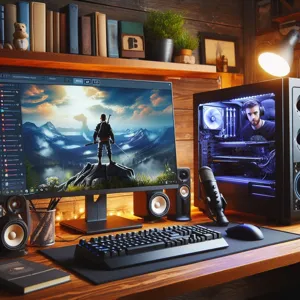
Many beginners think they need a second PC for streaming. That is a myth in the age of modern GPUs. Your graphics card can handle the heavy lifting, provided you pick the right parts.
- The Encoder is King: Use an NVIDIA RTX card with NVENC. Think of NVENC as a dedicated assistant that handles video encoding so your main processor can focus entirely on running your game.
- CPU Requirements: Aim for at least 6 physical cores. A CPU is like the manager of a restaurant; if it is overwhelmed by the game, it cannot tell the encoder what to do next.
- RAM Constraints: 16GB is the minimum. If you run your browser, Discord, and a modern game, 8GB will act like a bottleneck in a pipe, forcing your stream to stutter.
- Storage Speed: Always use an NVMe SSD. Mechanical hard drives are like waiting for a slow waiter; they cause micro-stutters that ruin high-action gameplay.
Mastering Your Network for Twitch and YouTube
Your internet upload speed determines the quality of your video delivery. If your upload speed is shaky, your viewers will experience pixelation or constant buffering. Imagine trying to drive a delivery truck on a road full of potholes; your data packets are the cargo falling off the back.
- Kill the Wi-Fi: Always use an Ethernet cable. Wi-Fi is like a conversation in a crowded room; other signals interfere with yours, causing dropped packets.
- Understand Bitrate: Bitrate is the amount of data sent per second. For 1080p at 60fps, set your OBS bitrate to 6000 Kbps. Ensure your upload speed is consistently double this value.
- The Stability Test: Run the ‘Bandwidth Test Mode’ in OBS for 10 minutes. If your drop count is above zero, your network is not ready for a broadcast.
OBS Studio: Manual Configuration vs. Auto-Pilot
Auto-configuration wizards are fine for beginners, but they rarely hit the mark for quality. Take control of your settings to ensure a professional result.
- Output Mode: Switch to Advanced to reveal the true power of OBS.
- Rate Control (CBR): Always select CBR. Think of CBR as a constant speed limit on a highway; it keeps the video data flow smooth for the streaming servers.
- Keyframe Interval: Set this to 2 seconds. Platforms like Twitch require this for reliable ingestion; otherwise, the servers will struggle to process your video packets.
- Preset Selection: Use ‘P5: Slow’ for a balance between GPU power and visual quality. Do not go too high, or you might hit the GPU usage limit and drop frames.
Common Pitfalls: Field Notes
I have seen many streamers crash during their first live session. Most of these issues are preventable if you follow these rules.
- Administrator Mode: Always launch OBS as an Administrator. This tells Windows to give OBS priority access to your GPU over the game, preventing stuttering during intense scenes.
- Game Capture vs. Window Capture: Only use Game Capture. Window Capture is like using a photocopy of a document; it is slower and consumes far more system resources.
- Audio Sync: Use a physical device or OBS filters to align your mic. A delay between your voice and the game action is like a badly dubbed movie; it causes viewers to drop off immediately.
- The Black Screen Nightmare: If you see a black screen, verify that your game and OBS are running on the same GPU. This is common on gaming laptops using both integrated and dedicated graphics.
Scaling Your Stream Quality
Stability is your foundation. Once you are stable, refine your production. Avoid cluttering your screen with too many alerts or oversized overlays. Your gameplay is the product; everything else is just decoration.
Manage your audio levels like a sound engineer. Set your game audio at -20dB and your microphone peaking near -3dB. If your audience has to adjust their volume to hear you over the game, they will leave. Consistency is the secret to growth in the streaming space.
Content updated on 2026-10-21